WhatsApp Communities have become a pivotal platform for bringing together individuals with shared interests, ranging from hobbies to educational pursuits. Recognizing the challenges of managing large groups, WhatsApp has innovatively integrated an event creation feature directly within the app. This article delves into this functionality, offering a step-by-step guide to streamline your event planning process in WhatsApp Communities.
Introduction to WhatsApp’s Event Feature
Since its inception in late last year, the event feature on WhatsApp has evolved from being limited to groups to being a vital tool for community administrators. It facilitates the organization of gatherings by allowing community members to mark their attendance for events scheduled on specific dates.
Accessible through the attachment menu, this feature stands alongside options like Polls and Contacts. Creating an event is straightforward: define its name, description, date, and time, and optionally add a location. For enhanced interaction, you can even toggle the option to include a WhatsApp voice or video call link. Once an event is set up, all community members receive a notification, and the event details are easily retrievable from the Community info page.
How to Create Events in WhatsApp Communities
Setting up an event within WhatsApp Communities is seamless:
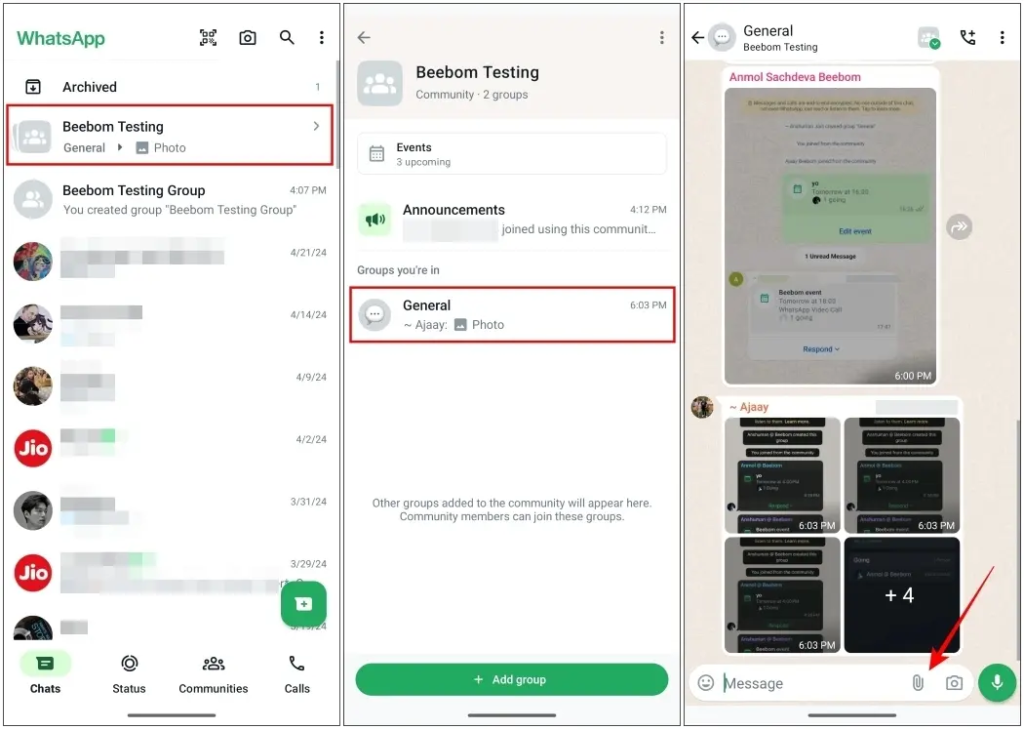
- Navigate to the appropriate group within your community from the Chats screen or under the Communities tab.
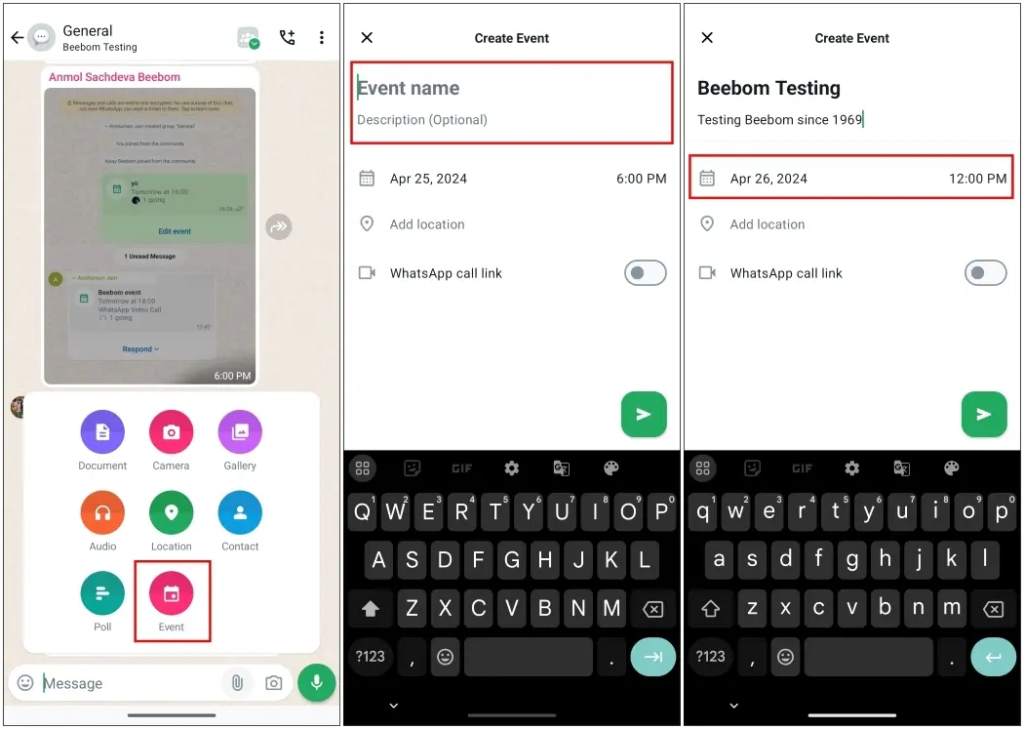
- Tap the attachment icon, then select ‘Event’.
- Enter the necessary details: event name, description, date, and time. Optionally, specify the event’s location.
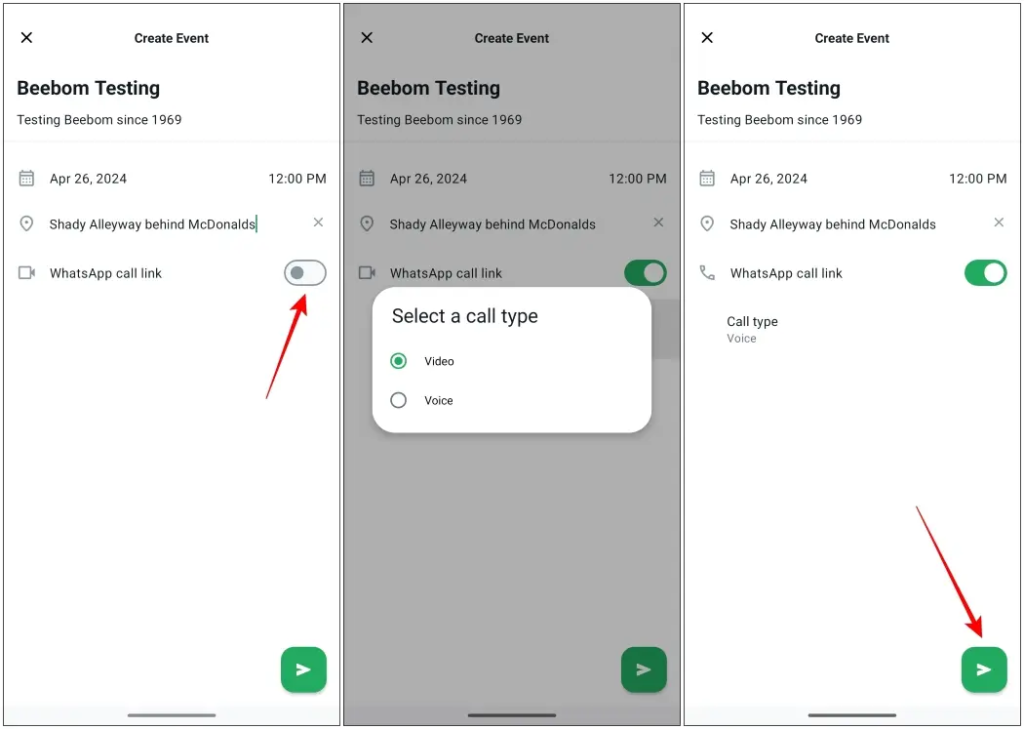
- Activate the WhatsApp call link if desired, choosing between voice and video call types.
- Confirm by tapping the send icon, and your event is ready to go!
Engaging Community Members with Event Responses
Once the event is announced, community members can respond directly from the WhatsApp group. Here’s how they can interact:
Once the event is announced, community members can respond directly from the WhatsApp group. Here’s how they can interact:
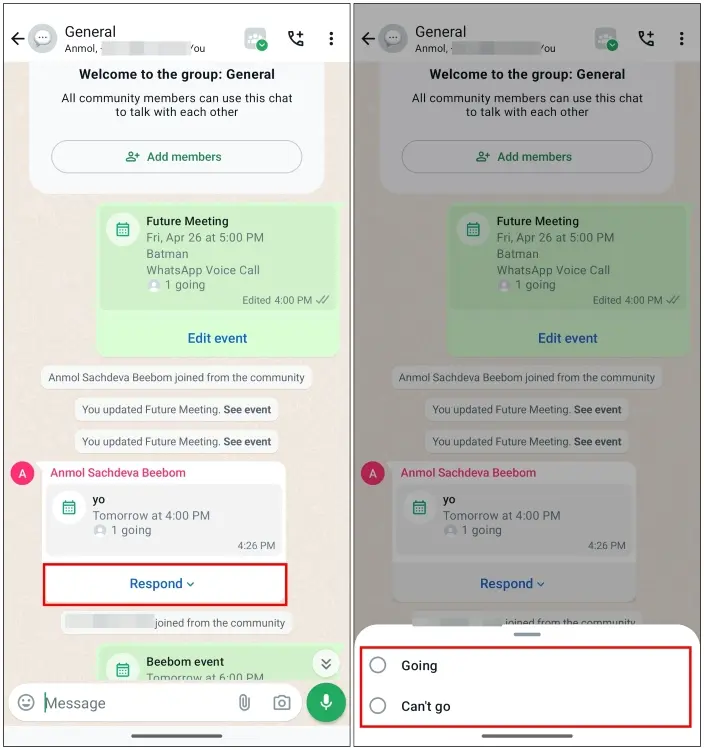
- Tap ‘Respond’ under the event message.
- Choose ‘Going’ or ‘Can’t go’ to indicate attendance.
This response mechanism not only simplifies attendance tracking for organizers but also keeps members informed about any updates or changes to the event.